Timelapse-style change
AI Before and After Video Generator
This AI before and after video generator turns one change into a finished vertical Short that shows the whole journey, from the bare start to the finished result, in a single steady shot.
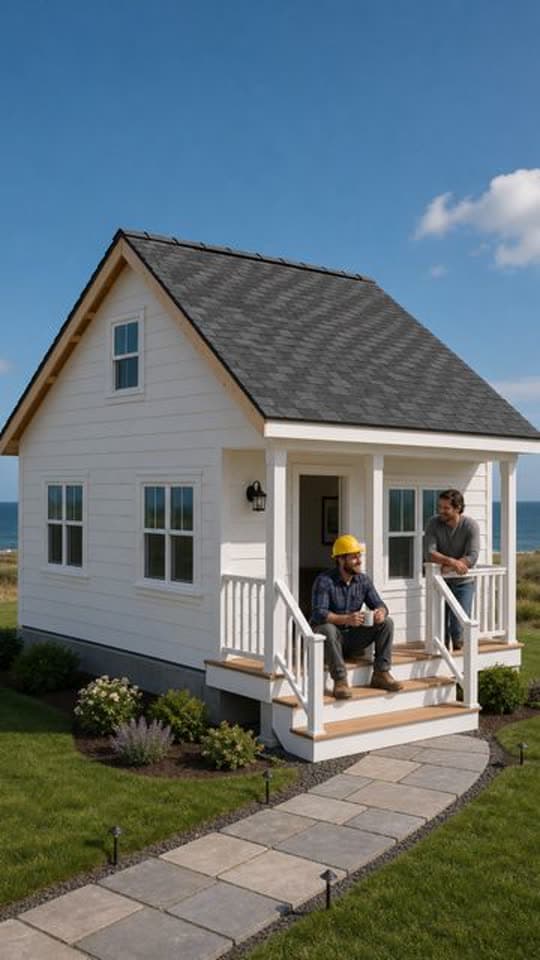
Typed idea
“farmhouse construction from grounds up”
Made with FacelessVideoMaker
Watch finished Shorts in these formats.
Open any format to watch the finished Short and read the idea it came from.
Motion is reduced. Scroll horizontally to browse the formats.
What an AI before and after video generator makes
A before and after clip works because the viewer sees the start, waits through the change, and gets the reward at the end. The Transformation format is built around that arc. It holds the camera in one place, lets time speed up, and moves a scene from a clear starting state to a clear finished one, which is what makes it work as an AI timelapse video generator.
You describe the change in a sentence, and the format plans the stages in between, makes them, and joins them into one vertical video. An AI transformation video can show a house rising from its foundations, a worn floor becoming a polished one, a faded plant coming back to life, or something more surreal, such as a giant candle melting over a bus stop.
Real Shorts from this format include a concrete farmhouse rising from the ground, a floor of heart-shaped stones laid into a finished room, liquid metal settling into a purple and gold bedroom floor, and a drooping monstera recovering in a sunny corner. Each began as a single description of the change.
Formats
Six changes that suit an AI renovation video generator
The best transformations have a clear first frame and a clear last frame, so the viewer always knows what changed.
Room makeovers
A bare room gains flooring, paint, and furniture while the camera stays where it is, and the last frame shows it finished.
Builds from the ground up
A foundation becomes walls, a roof, and a finished house, which suits the long arc of a construction timelapse.
Restoration
Something worn, such as a rusted tool or a cracked table, is cleaned and repaired until it looks new again.
Gardens and plants
A neglected corner fills with growth, or a drooping plant recovers, with light changing across the scene.
Surreal reveals
A giant object arrives in an everyday place, such as a candle over a bus stop, and the scene changes around it.
Reverse changes
A finished thing returns to its raw materials, which turns a familiar result into something worth a second look.
From a change to a finished timelapse Short
You describe the change, choose the look and sound, check the price, and the timelapse is made.
- 01
Describe the change
Say what starts bare and what ends finished, for example an empty attic turning into a small bedroom with a window seat.
- 02
Choose sound and length
Natural sound, a music bed, or silence are on the menu, and the length menu only lists what the format can make.
- 03
See the price first
The price shows before anything is built, and credits return if the Short fails or is cancelled.
- 04
The finished Transformation Short, with its title, description, and tags ready to edit.
Watch the change
The finished vertical Short appears in Your Shorts, where you can review it and post it when you are ready.
Try it with your own idea
Describe the change so the timelapse stays clear
A before and after video maker draws the stages between your first and last description, so those two ends do most of the work.
- 01
Describe the first frame
Bare walls, a stained floor, or an empty lot tells the clip exactly where the change begins.
- 02
Describe the last frame
Name the finished look, such as warm oak flooring or a glowing garden path, so the clip has a result to reach.
- 03
Pick one fixed camera
A locked, steady view makes the change easy to read, which is the pleasure of a timelapse.
- 04
Name the stages in order
Clearing, laying, painting, and furnishing in that order give the middle of the clip a believable sequence.
- 05
Keep one subject
A single room, house, or object changes more clearly than a whole street at once.
Transformation or Action
Both formats can show work being done, and they focus on different things.
| Topic | Transformation | Action |
|---|---|---|
| Focus | The whole change, from start to finish. | The task itself, beat by beat. |
| Camera | A steady view while time moves. | Follows the hands and the tools. |
| Best for | Builds, makeovers, and restorations. | Repairs, crafts, and step-by-step work. |
Your own photos, sound, and what a timelapse is
Transformation can start from your own pictures. You can add a Before image and an After image, both optional, and they are cropped to 9:16. You keep ownership of what you upload, and you need to hold the rights to use it that way. Plain words are enough for a first clip.
There is no narrator on this format. Sound is natural sound, a music bed, or silence, which suits a change that speaks for itself. Every Short is a vertical 9:16 video, and the price shown is for the length and sound you picked.
A generated timelapse illustrates a change. It is not footage of a real project, so do not present it as a record of work you carried out for a client. For food that changes while it cooks, the AI cooking video generator is the closer match, and the AI ASMR video generator fits slow satisfying textures.
Start from an idea, with the format already picked
Each idea opens the composer with its format chosen, and you can change either before anything is made.
Formats that fit these ideas


Not quite what you need?
These pages cover the same tool for a narrower goal.
What to know before you create
What is an AI before and after video generator?
Can I use this before and after video maker with my own photos?
Is the timelapse a record of a real renovation?
Can the video have a voiceover?
What kinds of change work best?
How long can a transformation Short be?
What does a transformation Short cost?
Describe the change and watch it happen
One description of a change is enough to start a transformation Short. FacelessVideoMaker plans the stages, adds the sound, shows the price first, and returns the finished timelapse to Your Shorts.