Guide 9 of 13
2 min read
Connecting your channels
Connect YouTube, Instagram or TikTok, then publish any finished Short to it.
Direct publishing is live on YouTube and TikTok, with Instagram coming soon. Connect a channel once, then post any finished Short to it from its card. Posting never uses credits.
Check what each platform needs
The Google account must already have a YouTube channel.
A Professional account: Business or Creator.
Any account. If TikTok refuses an upload, the card shows TikTok's reason.
Connect a channel
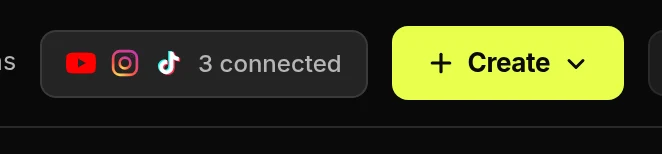
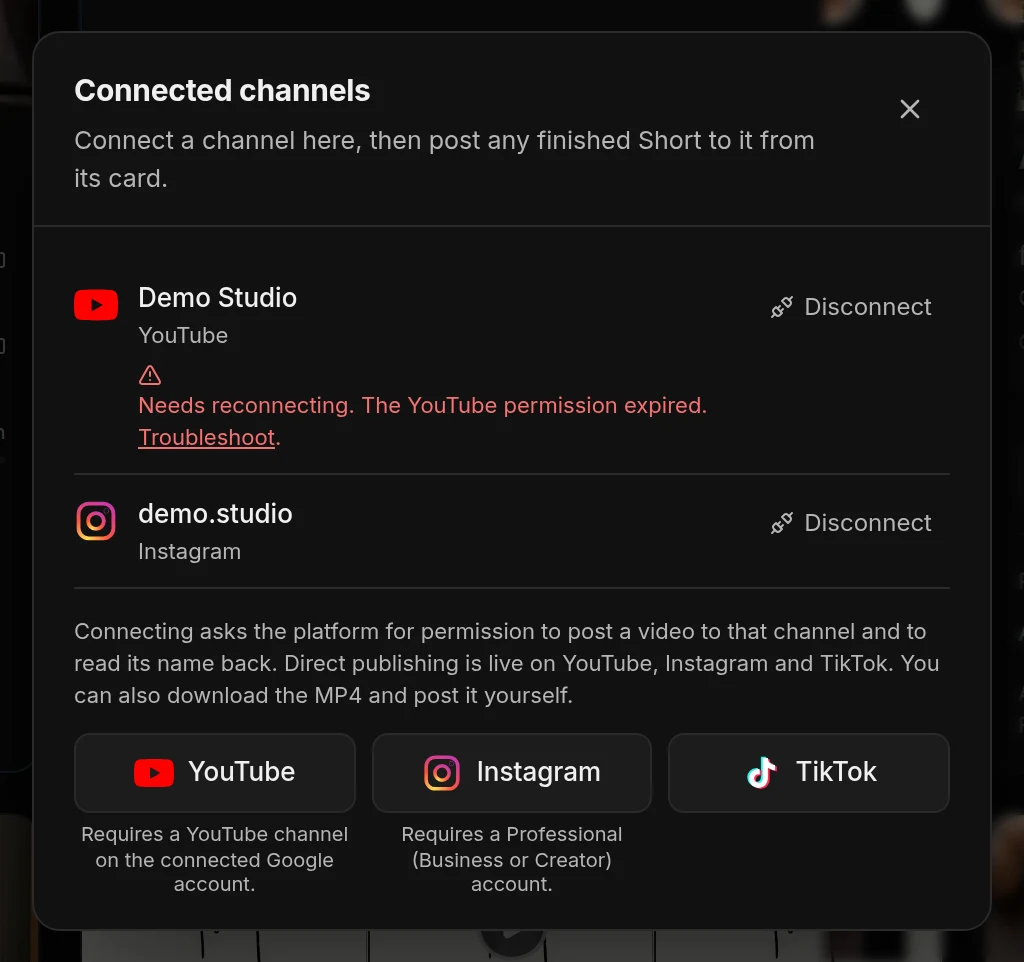
- Open Connected channelsUse this button in the top bar, or go to Settings.
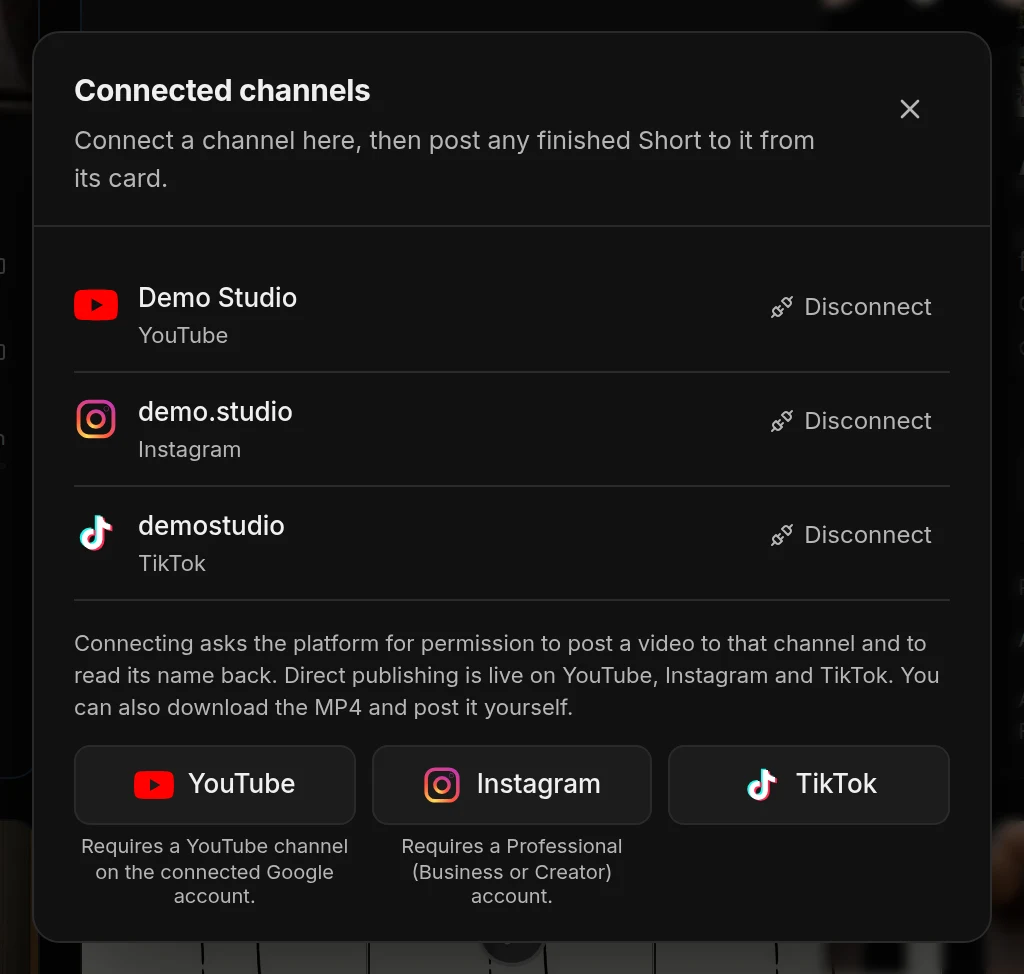
- Platform buttonsPress one and sign in with the account that owns the channel. Leave every permission ticked.
- DisconnectCancels that channel's waiting posts. Videos already published stay up.
Publish to your channels
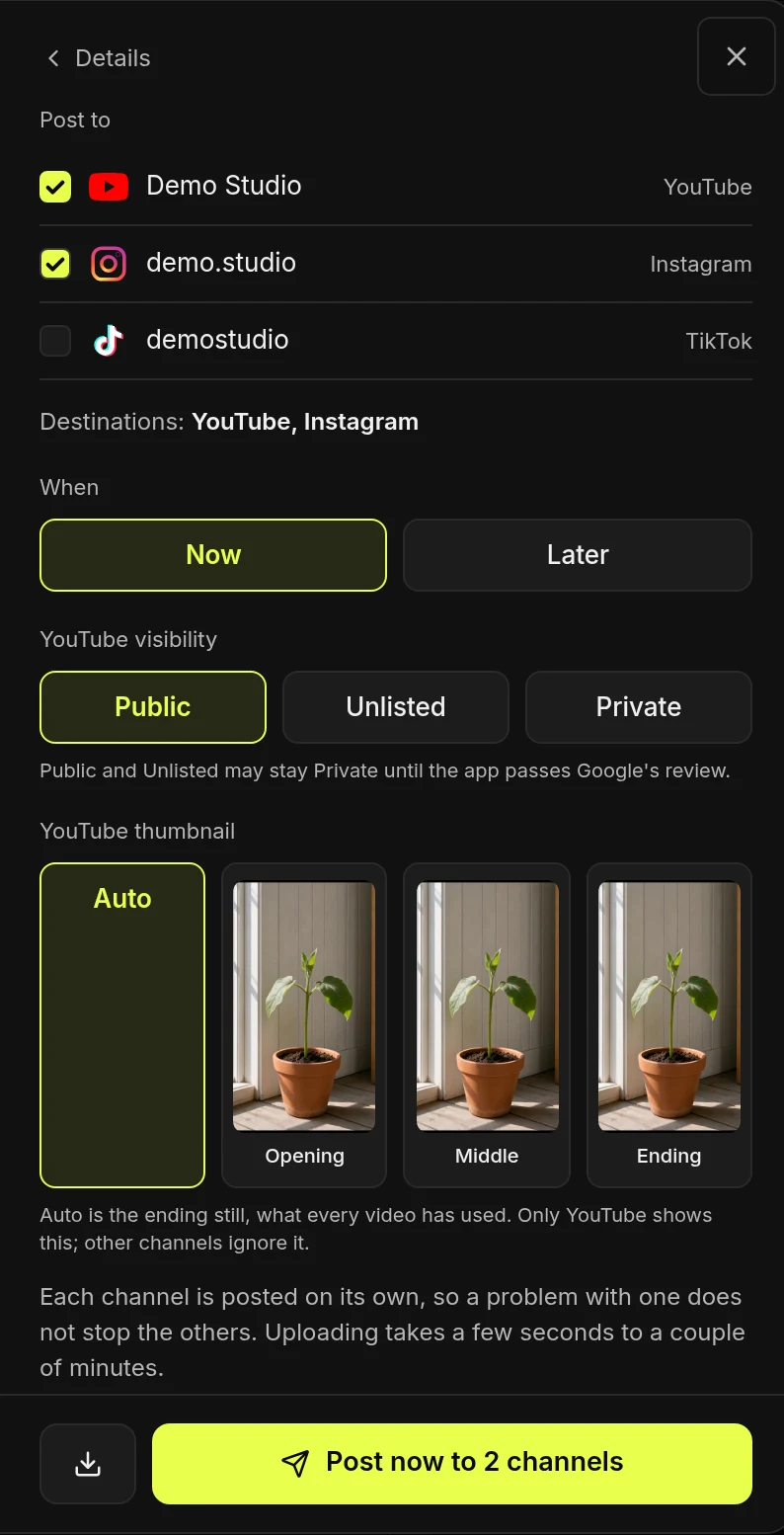
- Tick each channelEach one gets its own post. If one fails, the others still go out.
- Choose Now or Later, then postSet the YouTube visibility here too. To change a scheduled time, cancel the post and schedule it again.
How your videos are labelled as AI
YouTube and TikTok uploads get each platform's AI label automatically. Instagram does not add one for you, so labelling there is up to you. Section 10 of the terms explains this.
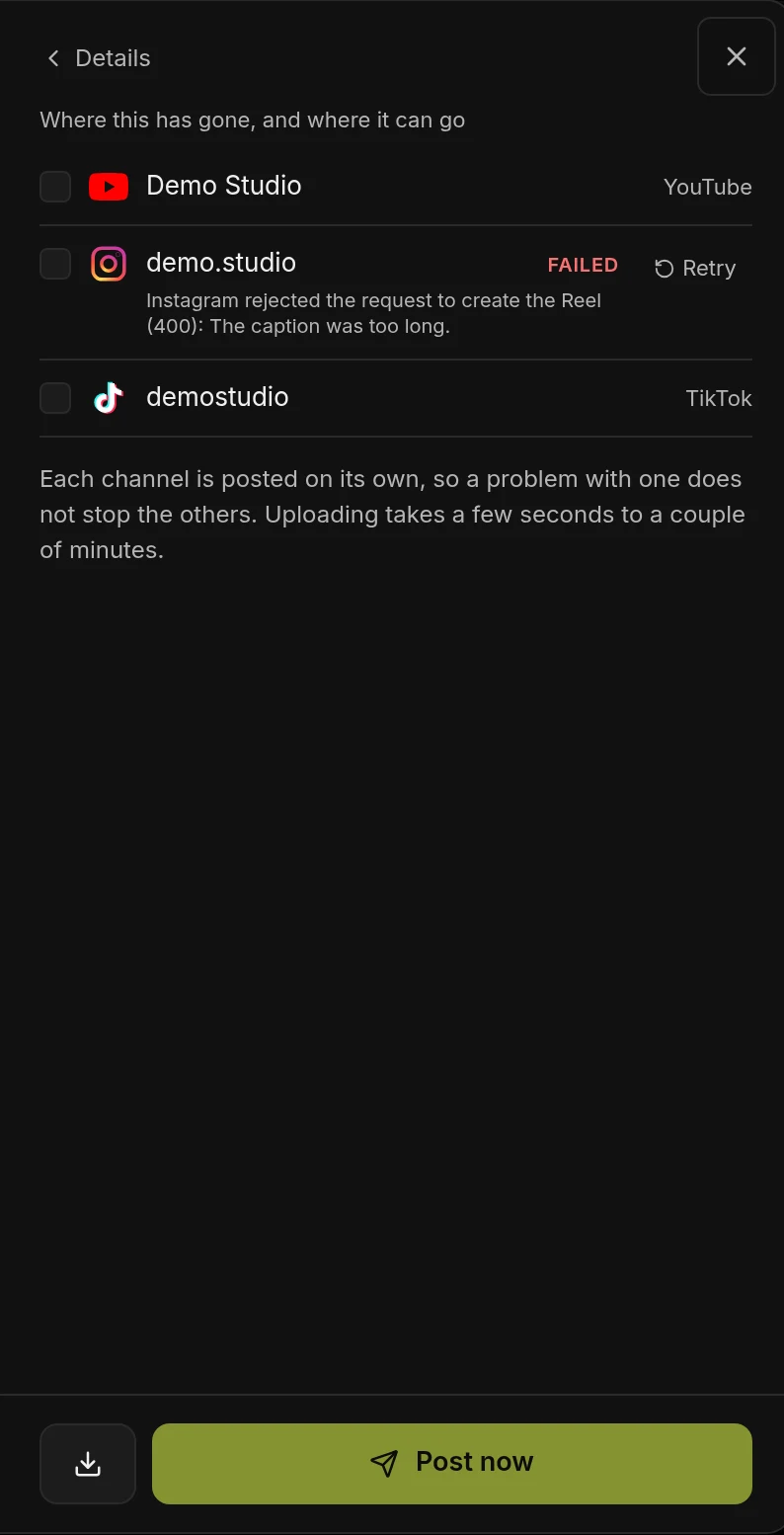
If a post does not go out
Reconnect or disconnect a channel
Troubleshoot Instagram
- Use a Professional account. Business and Creator accounts can be connected. Personal accounts cannot.
- Approve every permission Instagram asks for.
- Try again from Connected channels.