YouTube growth · 8 min read
How to Make a GTA-Style AI Short: A 30-Second Breakdown
Watch a 30-second AI car-chase example, plan your own shots, and check continuity. Includes a prompt to copy and a clearer ending to try.
By Faceless Video Maker editorial team8 min read
On this page
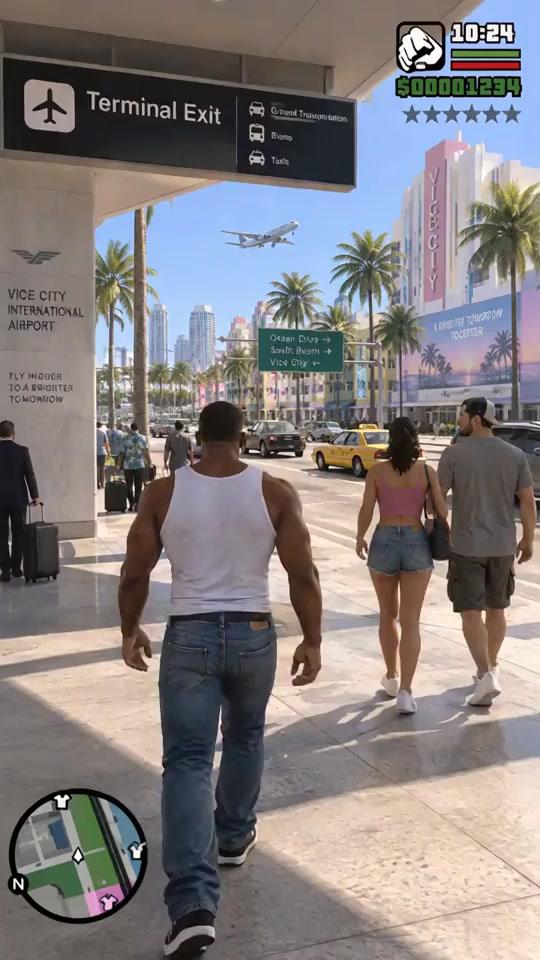
A man walks out of an airport, meets two people under the palms, and climbs into a red car. A few shots later, police cars are right behind him. That is the whole story of this 30-second video, made with Faceless Video Maker.
Watch it below. Then see a prompt for a similar scene, with a clearer ending, and make your own.
Watch the finished example
The video opens on a man in a white vest and jeans walking past a terminal exit sign, with palm trees and bright buildings behind him. Around nine seconds in, he stands next to a woman in pink and a man in gray. Then he gets into a red car, and the camera moves behind it.
Police cars show up around eighteen seconds in. The red car turns onto another street and is still driving when the video ends. The icons, clock, and minimap on screen are part of the AI picture. They are not a real game.
Plan four shots
The airport and the red car make a great start. What the video lacks is an ending, so give yours a place to go: a visitor lands in a sunny coastal city, gets into a red coupe, and reaches a quiet garage after a short chase.
- Airport exit. The visitor walks out. Show the white vest, jeans, palm trees, and the red coupe.
- Into the car. He opens the driver’s door and sits down.
- One chase. The coupe drives off with a police car behind it and makes one turn.
- Arrival. The coupe pulls into a garage and stops. Give it a moment before the video ends.
This plan leaves out the two companions, so there are fewer people to keep consistent. Add them back once the first version works.
The prompt
Here is a prompt for those four shots. Press the button to open it in the app, then change the visitor, the car, or the place.
What each part does
- The visitor and the car. Clothes and car are named once, so you get the same ones each time.
- One action per sentence. Walk out, get in, drive away, turn, stop.
- The ending. The last sentence is a stop, so the video has somewhere to finish.
- A clean frame. It asks for a plain street, which keeps clocks and icons out of the picture.
The prompt leaves out camera moves and quality words. You choose the look and sound in the settings, as the brief-writing guide explains.
What to change for your own version
- The visitor. Try a woman in a yellow jacket, or a delivery rider.
- The car. Try a blue pickup or a white van.
- The place. Try a beach diner, with a sign and a parking space for the last shot.
- The ending. Try a ferry terminal, where the car arrives as the boat leaves.
Make it in Faceless Video Maker
- 1Open your dashboard and press Create.
- 2Pick the Action format.It is made for one scene told step by step.
- 3Paste your prompt.Or press Make this video above and it fills in for you. Change the visitor, car, and place to make it yours.
- 4Choose a look, a length, and a sound.
- 5Wait a few minutes, then watch the whole video.You can close the tab. Your Shorts shows the progress.
A good chase has three moments:
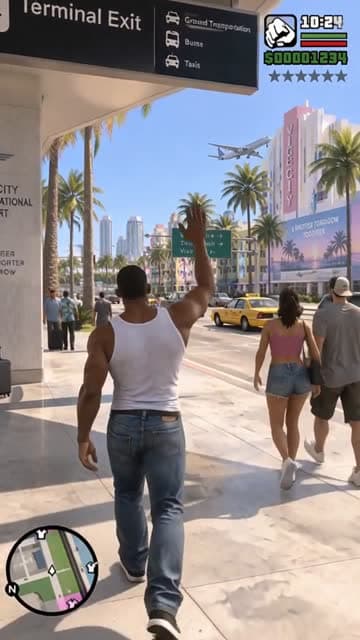 01 Arrival
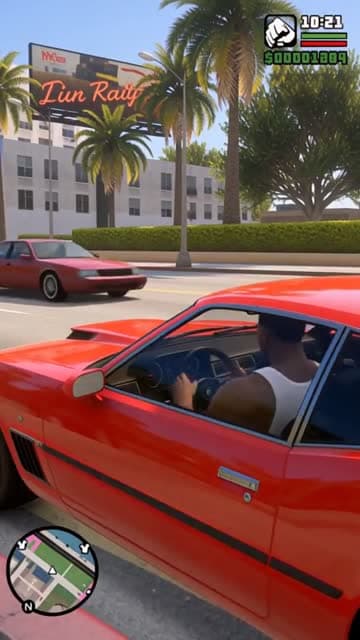 02 In the car
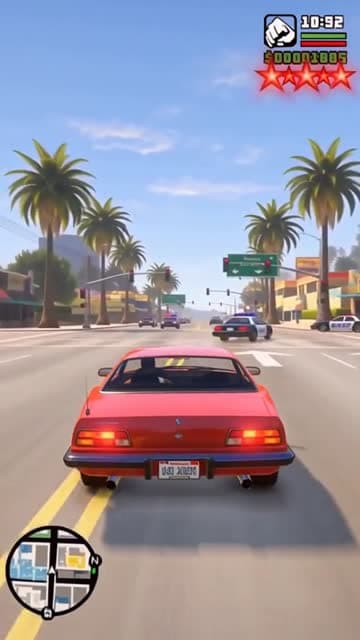 03 The chase
If the result misses
Change one thing, make the video again, and compare.
- The car or clothes change between shots. Name the car and outfit once, then use the same words each time they appear.
- The chase never ends. Make the last sentence a stop: “drives into a quiet garage, where it stops.”
- Clocks, maps, or icons appear. Describe the clean frame you want instead of listing what to leave out.
- Too many people to track. Remove the companions and keep one visitor.
Check the result before posting
The example video shows what to look for. Watch once for the story, then pause at each change of shot.
- The clock jumps. It reads 10:24, then 10:20, then 10:29. A prompt with a plain frame avoids this.
- The star display changes. The walking shots have unlit stars and the chase has colored ones, with nothing on screen to explain why.
- The camera moves. It goes from behind the walker to the car door to behind the car. Check the clothes, the doors, and the shape of the car each time.
- The last shot keeps moving. The example ends on a narrow street with no arrival. Make sure yours reaches the garage.
Before you post
Tell people what they are watching. A title like “Airport arrival to car chase: an AI fan concept” does that. Use the opening frame as the thumbnail, and turn on the AI label in the platform’s settings.
Rockstar’s policy on posting copyrighted material allows non-commercial fan use and lets Take-Two remove material at any time. As we read it, a channel that earns money or promotes a product may fall outside that. Read the current policy before you publish. This isn’t legal advice.
For real news about the game, see Rockstar’s official GTA VI page. This example is independent of Rockstar.
Make your own
Pick one visitor, one vehicle, and one place to finish, then write your prompt in the AI video generator. To post it, see the YouTube Shorts generator. For a whole series, see the faceless YouTube Shorts guide.
Other fan concepts to watch
The channel Vice & Vistas has more character and action ideas. It is independent of us, and we don’t know how it makes its videos.
FAQ
Frequently Asked Questions
Is this real GTA VI gameplay?
No. This is a 30.3-second AI-generated product example with game-style graphics. It is not recorded gameplay, official Rockstar footage, or a preview of how GTA VI plays.
Is this the exact prompt behind the video?
No. It is a fresh prompt for the same kind of scene, with a clearer ending. Results change every time you make a video, so adjust it and run it again.
What should I check between shots?
Check the character’s face and clothes, the red car’s shape and doors, and the camera transitions. In this example, the clock changes nonsequentially and the car is still moving at the end, so those details are useful review points.
Can I adapt the brief to a different scene?
Yes. Choose your own visitor, vehicle, and destination. Keep the actions specific and review the finished output. Results change every time, so adjust the prompt and run it again.
How should I label an AI fan-concept video?
Describe it as an AI fan concept and avoid implying it is gameplay or official footage. Review the material you use and the publishing platform’s AI disclosure options before sharing it.
About the author
Faceless Video Maker editorial team
We write practical guides to making and sharing AI videos, using examples from the product and creators we follow. Have a question about this article? Email us.