3 min read
When something goes wrong
Identify the problem you are seeing and follow the most useful next step.
Start with the message on the card. It usually names the next step. Then find the heading below that matches what you see.
A Short failed
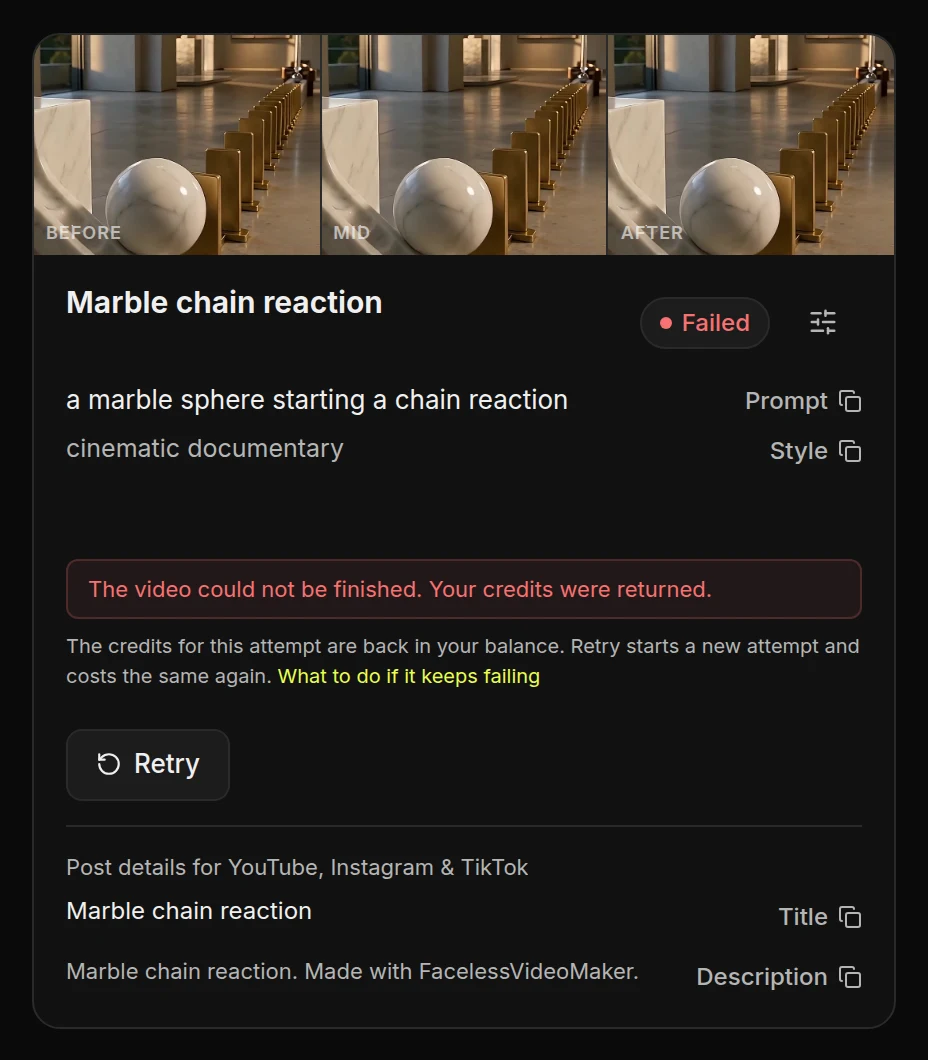
- Press Retry once. Many failures are temporary. Retry is charged again, at the same price.
- Still failing? Describe a visible action, try a format that fits better, or choose a shorter length.
- Failed twice with the same message? Email us before you pay for a third try.
The Short is not what you expected
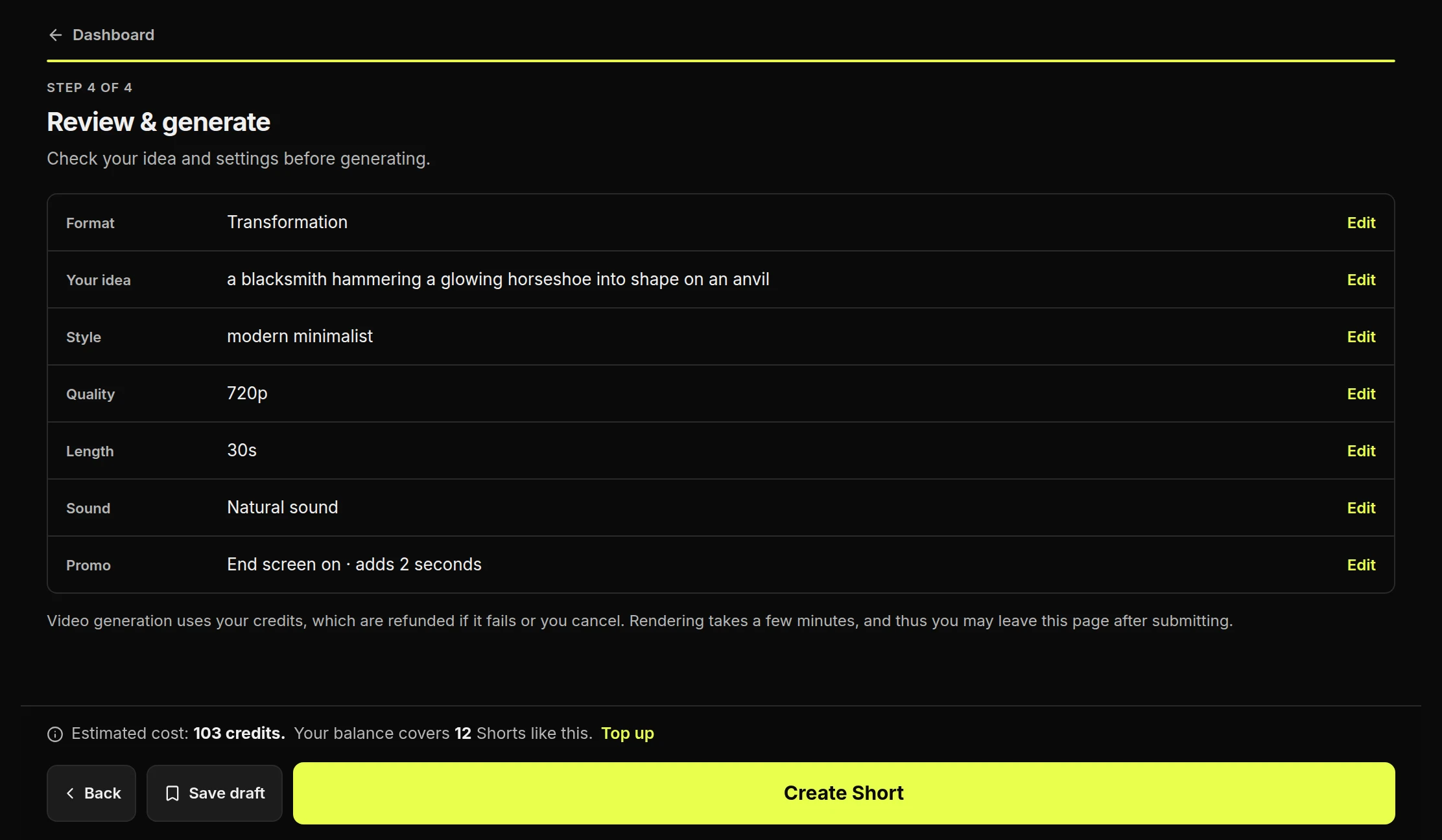
The length may have moved to the nearest one your format offers. The look comes from the format and the visual style, and what happens comes from your description. None of these can be changed once the Short is made.
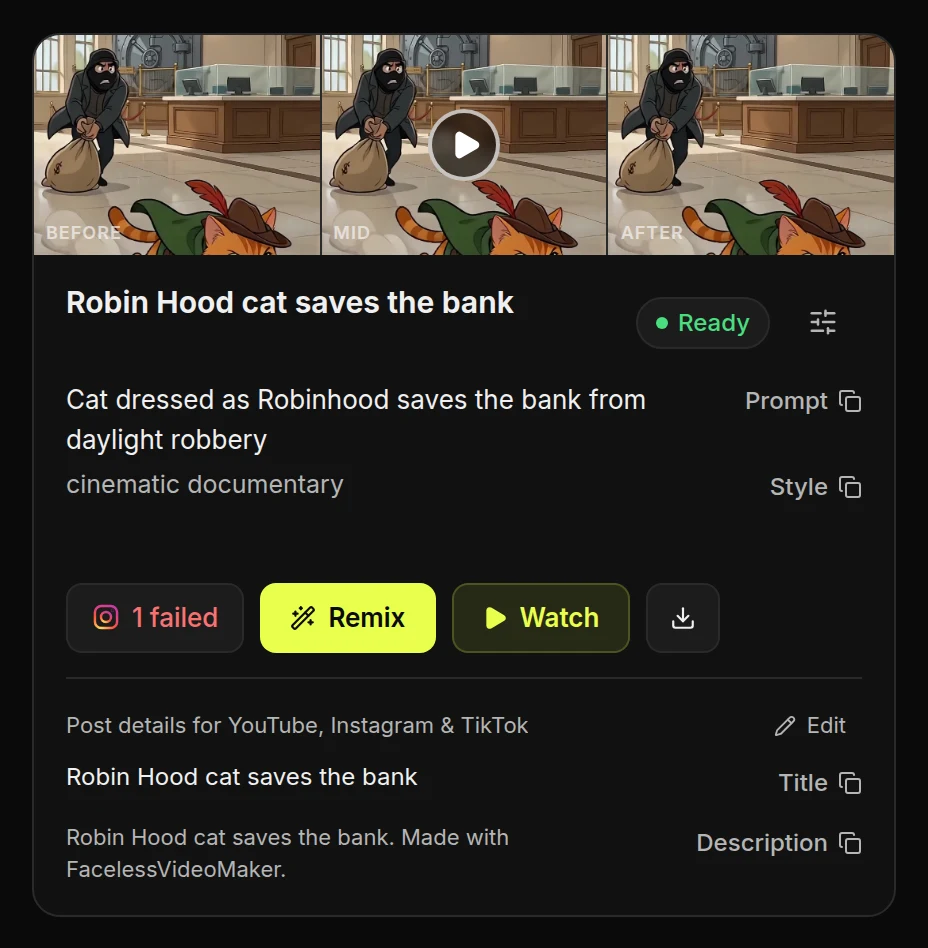
A post did not go out
- Open the failed labelIt names the channel and gives the platform's reason. Your other channels are not affected, and posting never costs credits.
A channel will not connect
- Needs reconnectingThe sign-in for this channel expired or was withdrawn.
- Platform buttonPress it to sign in again. The same button connects and reconnects.
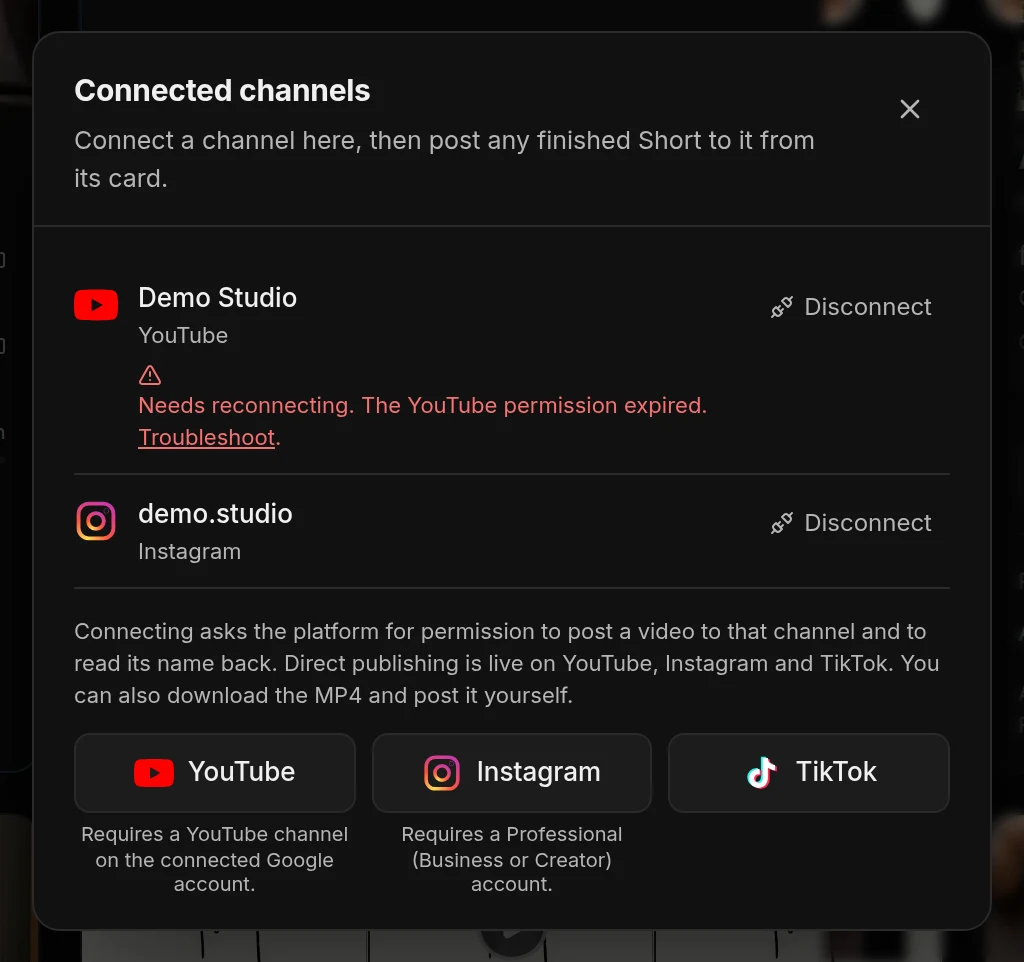
If it never connected, the banner on your dashboard says why:
Your credits look wrong
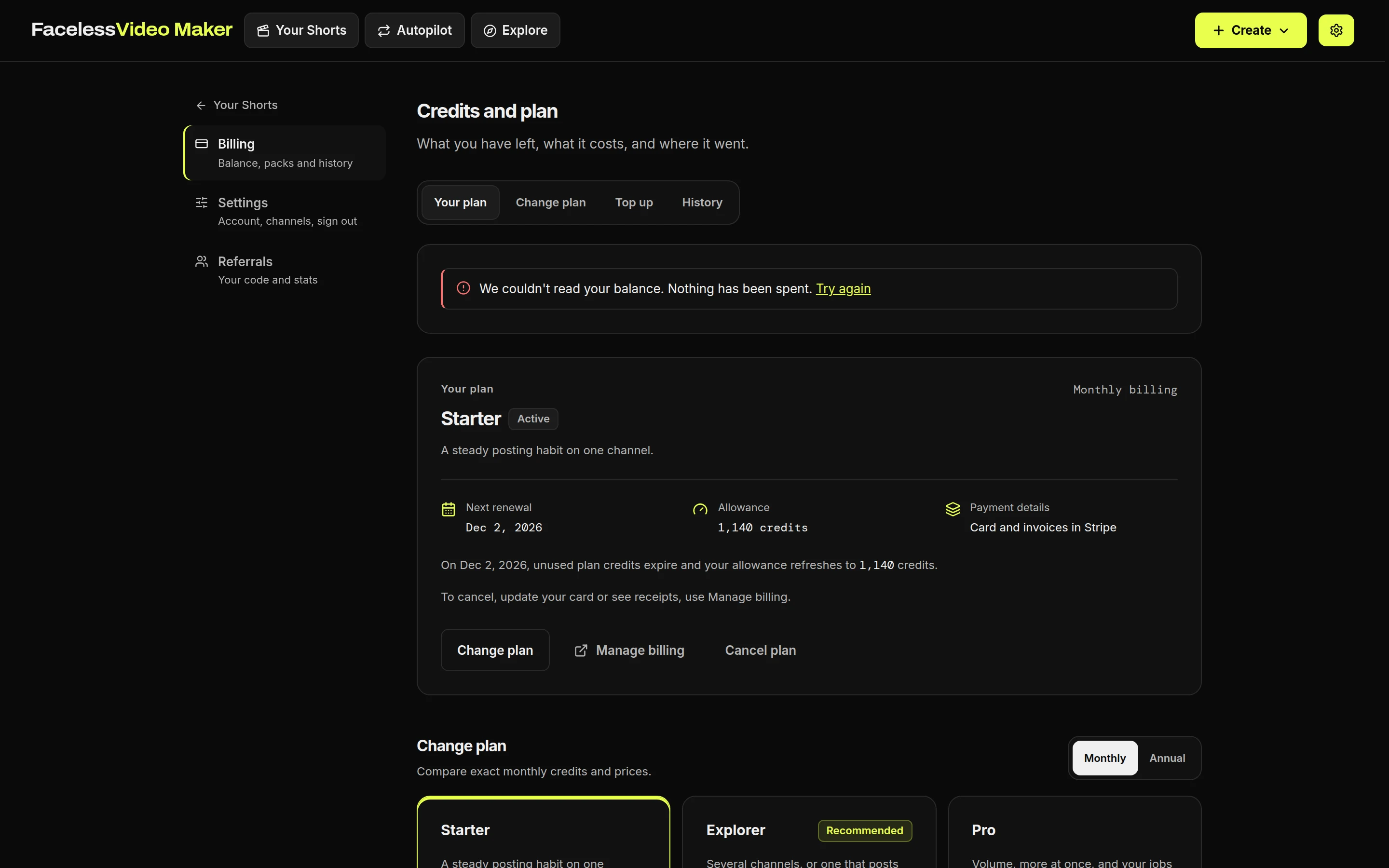
Credits leave your balance when a Short starts, and come back in full if it fails or you cancel it. A series that runs short of credits skips that video, and pauses after three skips in a row. See credits and what things cost.
Still stuck?
Email hello@facelessvideomaker.ai with the Short's title, its format and the exact message you see. To report content that breaks the rules, send us a link. Copyright complaints follow section 13 of the terms.